

How to set up Google Pay and PhonePe on a new phone, step by step, and stay safe from fraud
Moving UPI apps to a new phone means verifying the bank-linked mobile number again, so the right SIM and SMS verification matter.
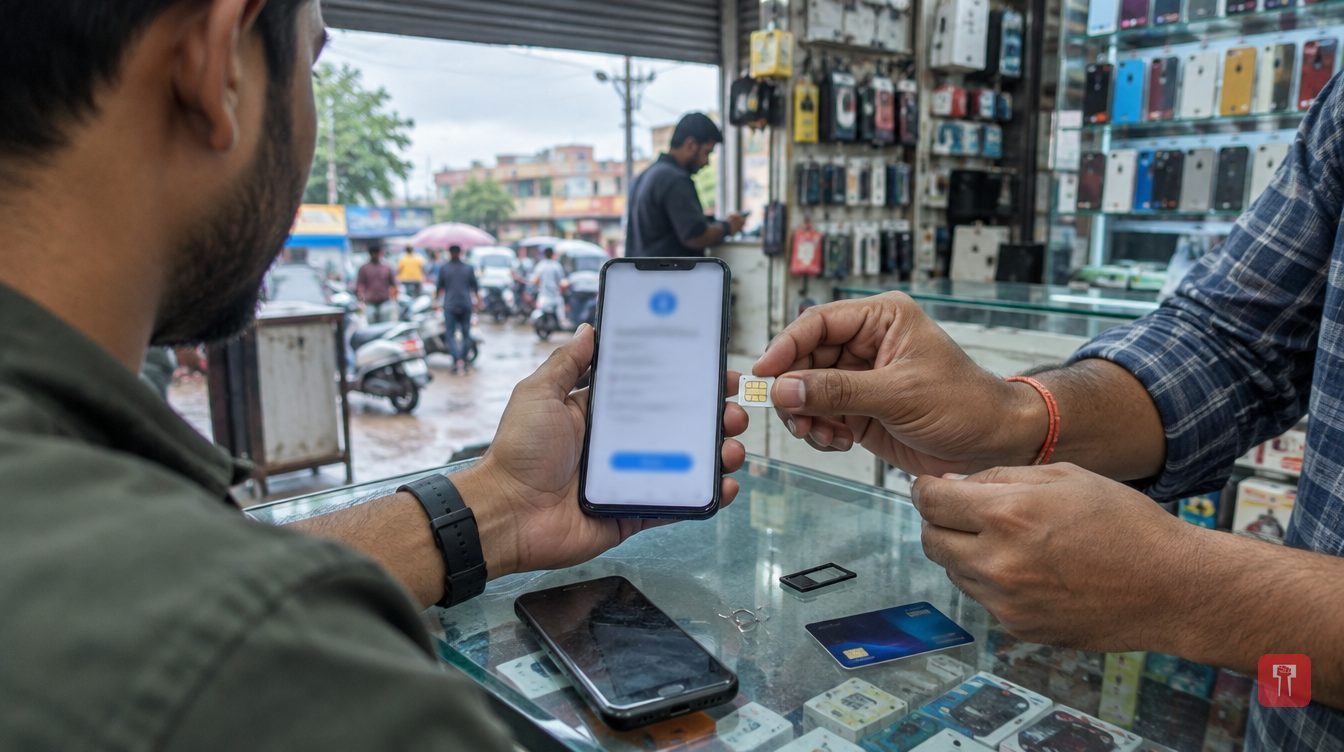 Images are not validated/verified
After buying a new smartphone, moving photos, contacts and other data from the old phone is easy. But UPI payment apps such as Google Pay and PhonePe require the bank account to be verified again when they are set up on a new mobile.
If the right SIM card is not selected or SMS verification fails, the whole process gets stuck. It is therefore important to know what to remember while setting up a UPI app on a new phone, how to link the account and what precautions to take against online fraud.
With the growing use of digital payments, apps such as Google Pay and PhonePe handle a large number of transactions every day. On a new mobile, users have to log in to these apps again. A mobile number and OTP alone may not be enough, because the mobile number linked to the bank account is also verified.
Keep these things ready before setting up the app. First, the SIM linked to the bank: the SIM of the mobile number on which the bank account is registered must be in the new phone. Second, SMS enabled: the app may send an SMS for verification, so the SIM must have outgoing SMS and the required balance or an active plan. Third, bank account details: the name of the correct bank must be known to select the account. Fourth, a debit card: if the UPI PIN has to be set afresh, debit card details may be needed, depending on the bank's rules.
If the phone has two SIM cards, it is important to select the one with the bank-linked number. The SIM need not be in slot 1 in every phone, but the right SIM must be chosen if the app asks.
Now the step-by-step method. Step 1: Download the official app. Open the Google Play Store or Apple App Store on the new phone and download and install Google Pay or PhonePe. Avoid downloading APK files from unknown websites.
Step 2: Verify the mobile number. After opening the app, select or enter the bank-linked mobile number. Complete the OTP or SMS verification as the app instructs.
Step 3: Link the bank account. Choose 'Add Bank Account' or the option to add a bank account in the app. After selecting the bank, complete the SMS verification. If an eligible account exists, it will appear in the app.
Step 4: Check the UPI PIN. If needed, use the existing UPI PIN or set a new one through the app's official process. If the PIN is forgotten, a debit card or other available verification may have to be used, as per the bank's rules.
Also note how much money can be sent after UPI is set up on the new phone. After the app is activated on a new device, some banks or apps may place a limit on initial transactions for security reasons. The limit is not the same for everyone. It depends on the app, the bank and the rules that apply. Users should therefore not assume that there is a universal rule that all users can transact only up to Rs 5,000 in the first 24 hours. Check the notice given in the app before transacting.
To avoid cyber fraud, do not make these mistakes. Do not share your OTP, UPI PIN or confidential debit card details with anyone. Do not click on unknown links sent in the name of setting up Google Pay or PhonePe. Do not give screen sharing or remote access to anyone claiming to be a customer service representative. Once the account is working properly on the new phone, log out of the UPI app on the old device or, if possible, remove the device entry. Before selling or giving away the old phone, back up essential data, remove accounts securely and factory reset the phone.
In sum, setting up Google Pay and PhonePe on a new phone depends on the bank-linked mobile number, SMS verification and correct entry of the bank account. Follow the app's official instructions while completing the process and keep your financial information confidential.
