

How to set an Instagram Reel's audio as your ringtone on iPhone and Android
Users of both iPhone and Android can turn a Reel's audio into a ringtone, and iOS 26 makes it simpler on the iPhone.
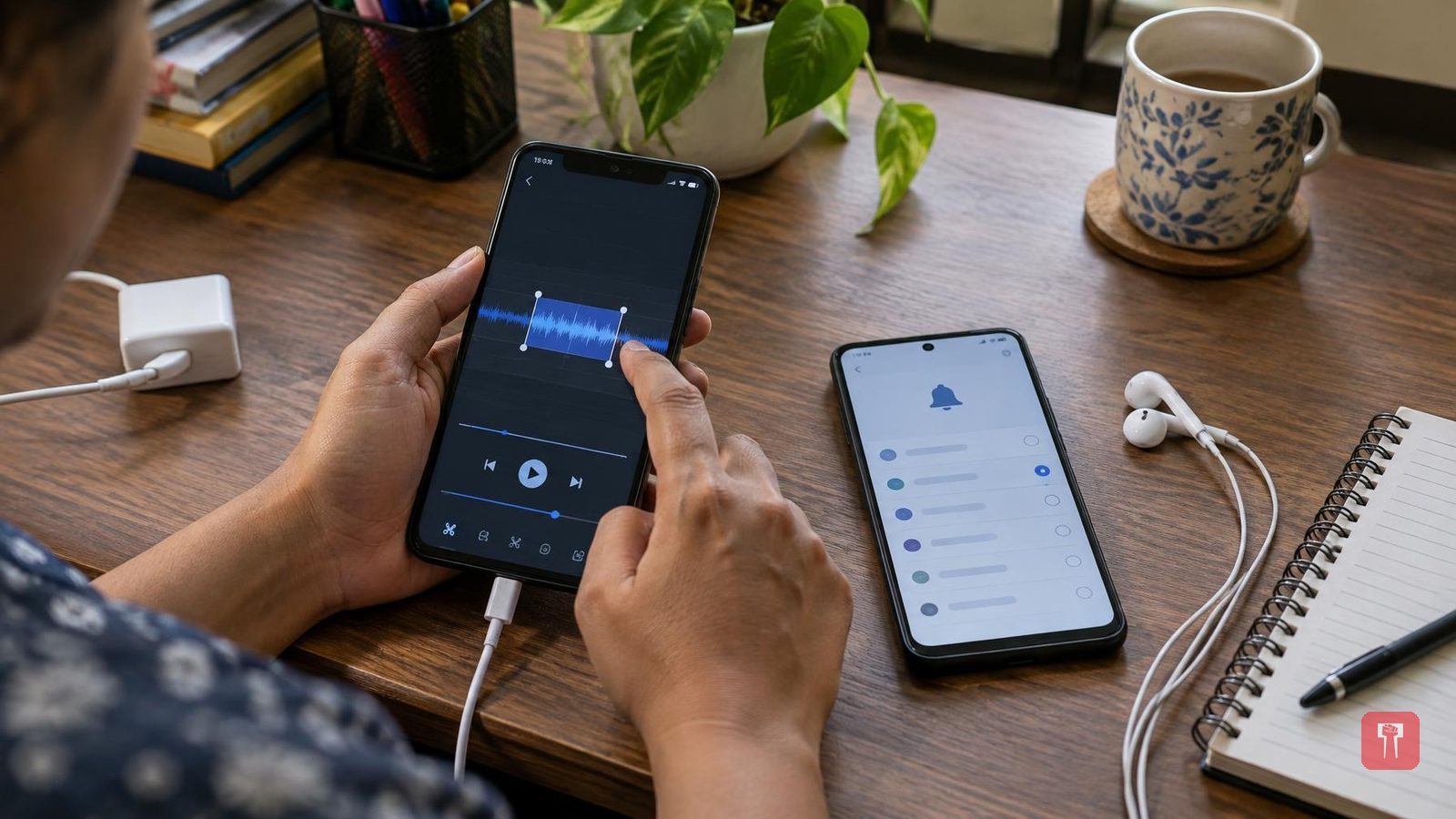
While scrolling through Reels on Instagram, a song or piece of music often turns out so appealing that one wants to hear it again and again. Many people also want to make it their ringtone. But not many know how to turn a Reel's audio into a phone ringtone. In fact, the process is quite easy for users of both Android phones and iPhones.
With iOS 26, it has become simpler on the iPhone. If your iPhone runs iOS 26, you can directly make an MP3 or M4A audio file of 30 seconds or less into a ringtone. Apple has added an option in iOS 26 to turn a short audio file into a ringtone directly through the Files app, so this method will not work without iOS 26.
On an iPhone, first download to your phone the Reel whose audio you want. Then trim the video to keep only the part you want as the ringtone. The audio file must be 30 seconds or shorter. Next, save the video in Files and create an audio file from it, because a video cannot be made a ringtone directly.
Now save the video's audio in MP3 or M4A format, keeping the length at 30 seconds or less. Then open the Files app on the iPhone and go to the folder where the audio file is saved. Long-press the file and choose the Share option.
In the Share menu, you will see the option "Use as Ringtone". Tap it and the saved audio becomes the iPhone's ringtone. If the option does not appear in the Share menu, tap "More" in the menu. Then go to "Sounds & Haptics" in Settings and tap "Ringtone". There you can view the ringtone and select it.
The method is slightly different on an Android phone. First, open the Instagram Reel and copy its link. Then search the internet for a tool that converts Instagram videos to audio, and paste the Reel's link there. After that, download the audio version.
Once the audio is downloaded, open the Downloads folder in the phone's Files app. Copy the downloaded audio file and paste it into the phone's Ringtones folder. Finally, go to the phone's Settings and choose the option to change the ringtone. The saved audio files will appear there. As soon as you select the file, the Instagram Reel's audio becomes your smartphone's ringtone.
